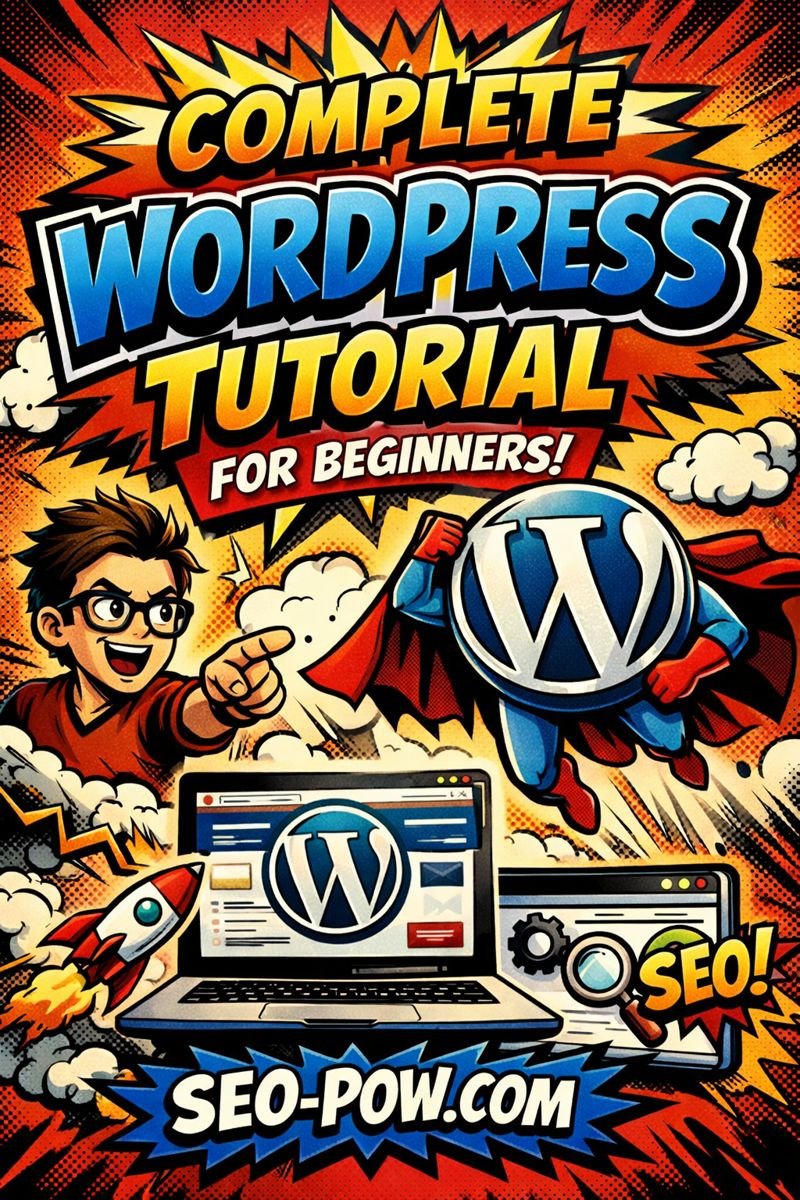
🚀 Complete WordPress Tutorial for Beginners
Welcome to your comprehensive WordPress journey!
This detailed tutorial will guide you through everything you need to know about logging into WordPress and creating your first posts and pages. Whether you’re completely new to WordPress or need a refresher, this guide has you covered with step-by-step instructions, helpful tips, and troubleshooting advice.
By the end of this tutorial, you’ll be confidently navigating your WordPress dashboard and creating professional content for your website.
📚 Table of Contents
- Part 1: Understanding WordPress Basics
- Part 2: How to Log Into WordPress
- Part 3: Navigating the WordPress Dashboard
- Part 4: Understanding Posts vs. Pages
- Part 5: Creating Your First WordPress Post
- Part 6: Creating Your First WordPress Page
- Part 7: Using the Block Editor (Gutenberg)
- Part 8: Publishing and Managing Content
- Part 9: Troubleshooting Common Issues
- Part 10: Best Practices and Pro Tips
Part 1: Understanding WordPress Basics
What is WordPress?
WordPress is the world’s most popular content management system (CMS), powering over 43% of all websites on the internet. It’s an open-source platform that allows you to create, manage, and publish content without needing to know how to code.
🎨 User-Friendly
Intuitive interface that makes content creation accessible to everyone, regardless of technical expertise.
🔧 Customizable
Thousands of themes and plugins to extend functionality and customize your site’s appearance.
📱 Responsive
Built-in responsive design ensures your content looks great on all devices.
🔍 SEO-Friendly
Optimized for search engines right out of the box, with additional SEO plugins available.
Key WordPress Terminology
Before we dive in, let’s familiarize ourselves with essential WordPress terms you’ll encounter:
- Dashboard: Your WordPress control panel where you manage all aspects of your site
- Posts: Time-based content entries, typically used for blogs and news
- Pages: Static content that doesn’t change frequently (About, Contact, Services)
- Block Editor (Gutenberg): The modern WordPress content editor using blocks
- Themes: Design templates that control your site’s appearance
- Plugins: Add-on software that extends WordPress functionality
- Media Library: Where all your uploaded images, videos, and files are stored
- Categories & Tags: Ways to organize your posts
Part 2: How to Log Into WordPress
Finding Your WordPress Login URL
The first step to managing your WordPress site is knowing how to access the login page. WordPress provides several standard URLs for accessing your admin area:
Standard Login URLs
Your WordPress login page can typically be accessed at:
or
Simply replace “yourwebsite.com” with your actual domain name.
For Subdirectory Installations
If WordPress is installed in a subdirectory (like a folder named “blog” or “site”), your URL would be:
For Subdomain Installations
If you’re using a subdomain, it would look like:
The Login Process – Step by Step
Open Your Web Browser
Launch your preferred web browser (Chrome, Firefox, Safari, Edge, etc.) and ensure you have a stable internet connection.
Navigate to Your Login URL
Type your WordPress login URL into the address bar and press Enter. You should see the WordPress login screen with the WordPress logo at the top.
Enter Your Username or Email
In the first field labeled “Username or Email Address,” enter the username you created during WordPress installation or the email address associated with your account.
Enter Your Password
In the “Password” field, carefully type your password. Remember that passwords are case-sensitive.
Optional: Check “Remember Me”
If you’re on a private, secure computer, you can check the “Remember Me” box to stay logged in for 14 days. Never use this on public or shared computers!
Click “Log In”
Click the blue “Log In” button to access your WordPress dashboard. If your credentials are correct, you’ll be redirected to the admin dashboard.
Forgot Your Password?
Don’t panic if you’ve forgotten your password! WordPress provides an easy recovery method:
- On the login page, click the “Lost your password?” link below the login form
- Enter your username or email address
- Click “Get New Password”
- Check your email for a password reset link
- Click the link in the email and create a new password
- Use your new password to log in
Part 3: Navigating the WordPress Dashboard
Understanding the Dashboard Layout
Once logged in, you’ll see the WordPress Dashboard – your command center for managing your entire website. Let’s explore each section:
1. Admin Toolbar (Top Bar)
The black bar at the top of your screen provides quick access to:
- WordPress Logo: Links to About WordPress, documentation, support, and feedback
- Site Name: Click to view your live website
- Comments Icon: Shows pending comments awaiting moderation
- + New: Quick links to create new posts, pages, media, or users
- Your Profile: Access your user profile and log out option
2. Main Navigation Menu (Left Sidebar)
The left sidebar contains all the main administrative functions:
📊 Dashboard
Overview of your site’s activity, updates, and quick draft feature
📝 Posts
Create, edit, and manage blog posts, categories, and tags
📄 Pages
Create and manage static pages
🖼️ Media
Upload and manage images, videos, and documents
💬 Comments
Moderate and reply to visitor comments
🎨 Appearance
Themes, customizer, widgets, and menus
🔌 Plugins
Add, activate, and manage plugins
👥 Users
Manage user accounts and permissions
⚙️ Settings
General, writing, reading, and permalink settings
3. Main Work Area
The central area displays the content of whatever section you’re working in. On the main dashboard, you’ll see:
- Welcome Panel: Quick links to get started (can be dismissed)
- At a Glance: Summary of posts, pages, and comments
- Activity: Recent posts and comments
- Quick Draft: Quickly jot down post ideas
- WordPress Events and News: Community updates
Part 4: Understanding Posts vs. Pages
One of the most important distinctions in WordPress is understanding when to use Posts versus Pages. Let’s clarify the differences:
Detailed Comparison
| Feature | Posts | Pages |
|---|---|---|
| Purpose | Dynamic, time-sensitive content | Static, timeless content |
| Examples | Blog articles, news, updates, announcements | About Us, Contact, Services, Privacy Policy |
| Organization | Categories and tags | Hierarchical (parent/child pages) |
| Display Order | Reverse chronological (newest first) | Menu order or alphabetical |
| RSS Feed | Included in RSS feeds | Not included in RSS feeds |
| Social Sharing | Commonly shared on social media | Rarely shared socially |
| Comments | Usually enabled by default | Usually disabled by default |
| Author Display | Shows author and publish date | Typically no author or date shown |
| URL Structure | Often includes date: /2025/01/post-name/ | Simple: /page-name/ |
| Templates | Uses post templates | Can use custom page templates |
When to Use Posts
Use posts when you’re creating content that:
- Is time-sensitive or news-related
- Will be part of a blog or news section
- Should appear in your RSS feed
- Benefits from categorization and tagging
- You want readers to comment on
- Should show publication date and author
- Will be shared on social media
When to Use Pages
Use pages when you’re creating content that:
- Is evergreen and rarely changes
- Provides essential information about your business
- Should be easily accessible from your main menu
- Doesn’t need categorization
- Shouldn’t show a publication date
- Forms the structural foundation of your site
Part 5: Creating Your First WordPress Post
Step-by-Step Guide to Creating a Post
Navigate to Posts
From your WordPress dashboard, hover over “Posts” in the left menu and click “Add New”. Alternatively, you can click the “+ New” button in the top toolbar and select “Post”.
Add Your Post Title
Click in the “Add title” field at the top and type your post title. Make it descriptive and engaging – this is what readers will see first in search results and on your blog page.
- Keep it under 60 characters for SEO
- Include your main keyword naturally
- Make it compelling and clear
- Use numbers or power words when relevant
Write Your Content
Below the title, you’ll see the content area. Click on “Type / to choose a block” and start writing. Press Enter to create a new paragraph block automatically.
Format Your Text
Select text to see formatting options:
- Bold: Ctrl/Cmd + B
- Italic: Ctrl/Cmd + I
- Link: Ctrl/Cmd + K
- Strikethrough: Shift + Alt + D
Add Media
Click the “+” button to add blocks for:
- Images: Upload or select from Media Library
- Videos: Upload, embed from YouTube/Vimeo, or select from library
- Galleries: Display multiple images in a grid
- Audio: Add podcasts or music files
Set Categories and Tags
In the right sidebar (click the gear icon if not visible), find the “Categories” and “Tags” sections:
- Categories: Select or create broad topic groupings
- Tags: Add specific keywords related to your post
Add a Featured Image
In the right sidebar, find “Featured Image” and click “Set featured image”. This image represents your post in archives and social media shares.
- Use high-quality images (at least 1200x630px)
- Optimize file size (under 200KB when possible)
- Include alt text for accessibility and SEO
- Choose images that represent your content
Configure Post Settings
In the right sidebar, review additional settings:
- Permalink: Customize your URL slug
- Excerpt: Write a brief summary
- Discussion: Allow/disallow comments
- Post Format: Choose format if your theme supports it
Preview Your Post
Click “Preview” in the top right to see how your post will look on the live site. You can preview on desktop, tablet, or mobile views.
Publish or Schedule
When ready, you have several options:
- Save Draft: Save your work without publishing
- Publish Immediately: Make it live right now
- Schedule: Set a future date/time for automatic publishing
- Private: Only visible to admins and editors
- Password Protected: Readers need a password to view
Part 6: Creating Your First WordPress Page
Step-by-Step Guide to Creating a Page
Navigate to Pages
From the dashboard, hover over “Pages” and click “Add New”, or use the “+ New” → “Page” shortcut in the admin toolbar.
Enter Page Title
Add a clear, descriptive title. For pages, titles are often straightforward like “About Us”, “Services”, “Contact”, or “Our Team”.
Create Page Content
Add your content using blocks. Pages often include:
- Heading blocks for section titles
- Paragraph blocks for text
- Column blocks for multi-column layouts
- Contact form blocks (requires plugin)
- Map blocks for location pages
Set Page Attributes
In the right sidebar, configure page-specific settings:
- Parent Page: Create hierarchy by selecting a parent
- Order: Set numerical order for menu display
- Template: Choose a page template if available
Page-Specific Considerations
Unlike posts, pages typically:
- Don’t show publish dates
- Don’t have categories or tags
- Have comments disabled by default
- Appear in navigation menus
- Can serve as your homepage or blog page
Common Pages Every Website Needs
🏠 Homepage
Your site’s front door – make a great first impression with clear messaging and calls-to-action.
📋 About
Tell your story, share your mission, and build trust with visitors.
🛍️ Services/Products
Showcase what you offer with clear descriptions and benefits.
📞 Contact
Make it easy for visitors to reach you with forms, phone, email, and address.
📰 Blog
A dedicated page to display your latest posts (if using a static homepage).
🔒 Privacy Policy
Required for GDPR compliance and building trust.
Part 7: Using the Block Editor (Gutenberg)
Understanding Blocks
The Block Editor (Gutenberg) revolutionizes content creation in WordPress by breaking content into individual “blocks” – discrete units that you can move, customize, and reuse. Think of blocks as LEGO pieces you can stack and arrange to build your content.
Essential Block Types
Common Blocks
Formatting Blocks
Layout Elements
Widget Blocks
Embed Blocks
Working with Blocks – Essential Techniques
Adding Blocks
There are multiple ways to add blocks to your content:
- Block Inserter: Click the “+” button in the top left or within the editor
- Slash Command: Type “/” in an empty paragraph to open a quick insert menu
- Enter Key: Press Enter after a paragraph to create a new paragraph block
- Drag and Drop: Drag blocks from the inserter directly into position
Block Toolbar Options
When you select a block, a toolbar appears with options specific to that block type:
- Transform: Change one block type to another (e.g., paragraph to heading)
- Drag Handle: Click and drag to reposition the block
- Move Up/Down: Arrows to shift block position
- Alignment: Left, center, right, wide, or full width
- More Options (⋮): Additional settings like duplicate, group, or remove
Block Settings Sidebar
The right sidebar provides advanced settings for the selected block:
- Color Settings: Text and background colors
- Typography: Font size, line height, and more
- Dimensions: Padding, margin, and border settings
- Advanced: HTML anchor, CSS classes, and custom CSS
Keyboard Shortcuts for Power Users
Master these shortcuts to work faster in the Block Editor:
| Action | Windows/Linux | Mac |
|---|---|---|
| Save changes | Ctrl + S | Cmd + S |
| Undo | Ctrl + Z | Cmd + Z |
| Redo | Ctrl + Shift + Z | Cmd + Shift + Z |
| Select all blocks | Ctrl + A (twice) | Cmd + A (twice) |
| Duplicate block | Ctrl + Shift + D | Cmd + Shift + D |
| Remove block | Shift + Alt + Z | Shift + Option + Z |
| Insert before | Ctrl + Alt + T | Cmd + Option + T |
| Insert after | Ctrl + Alt + Y | Cmd + Option + Y |
| Show/hide settings | Ctrl + Shift + , | Cmd + Shift + , |
| Navigate between blocks | Arrow keys | Arrow keys |
Advanced Block Editor Features
Reusable Blocks
Save frequently used block combinations as reusable blocks:
- Select the blocks you want to save
- Click the three dots menu and choose “Add to Reusable blocks”
- Name your reusable block
- Use it anywhere by searching for it in the block inserter
Block Patterns
Pre-designed block layouts you can insert and customize:
- Access patterns from the block inserter’s “Patterns” tab
- Browse categories like Headers, Footers, and Call-to-Action
- Insert a pattern and modify it to match your needs
- Create your own custom patterns (requires code or plugin)
Full Site Editing (FSE)
With compatible themes, you can edit your entire site using blocks:
- Edit headers and footers with blocks
- Create custom templates for different content types
- Design template parts that can be reused across your site
- Use the Site Editor to manage global styles
Part 8: Publishing and Managing Content
Publishing Options Explained
Visibility Settings
WordPress offers several visibility options for your content:
👁️ Public
Visible to everyone on the internet. This is the default setting for most content.
🔒 Private
Only visible to site administrators and editors. Useful for internal documentation.
🔑 Password Protected
Requires a password to view. Great for exclusive content or client-specific pages.
📌 Sticky Posts
Posts that stay at the top of your blog page, regardless of publish date.
Publishing Status
- Draft: Saved but not published, only visible to you
- Pending Review: Awaiting approval from an editor or admin
- Published: Live and visible based on visibility settings
- Scheduled: Set to publish automatically at a future date/time
Scheduling Posts
To schedule a post for future publication:
- Click on the publish date in the sidebar
- Select a future date and time
- Click “Schedule” instead of “Publish”
- Your post will automatically go live at the specified time
- Schedule posts during peak traffic hours for maximum engagement
- Maintain a consistent publishing schedule
- Use scheduling to maintain content flow during vacations
- Consider time zones if you have a global audience
Managing Existing Content
Editing Published Content
To edit existing posts or pages:
- Navigate to Posts → All Posts or Pages → All Pages
- Hover over the item and click “Edit” or “Quick Edit”
- Make your changes
- Click “Update” to save changes
Quick Edit vs Full Edit
- Quick Edit: Change title, slug, date, categories, and tags without opening the editor
- Full Edit: Access the complete editor to modify content and all settings
Bulk Actions
Manage multiple items at once:
- Check the boxes next to items you want to modify
- Select an action from the “Bulk Actions” dropdown
- Options include: Edit, Trash, or Move to Draft
- Click “Apply” to execute the action
Content Organization
Using Categories Effectively
- Create broad topic areas (e.g., “Technology”, “Lifestyle”, “Business”)
- Limit posts to 1-2 categories maximum
- Create a clear hierarchy with parent/child categories
- Add category descriptions for better SEO
Using Tags Strategically
- Use specific, descriptive tags
- Limit to 5-10 tags per post
- Be consistent with tag naming
- Review and merge similar tags regularly
Media Management
Uploading Media
WordPress accepts various file types:
- Images: .jpg, .jpeg, .png, .gif, .ico, .webp
- Documents: .pdf, .doc, .docx, .ppt, .pptx, .xls, .xlsx
- Audio: .mp3, .m4a, .ogg, .wav
- Video: .mp4, .m4v, .mov, .wmv, .avi, .mpg
Media Best Practices
- Optimize images before uploading (compress and resize)
- Use descriptive file names (avoid IMG_1234.jpg)
- Always add alt text for accessibility and SEO
- Organize media with folders using plugins if needed
- Regularly clean up unused media to save space
Part 9: Troubleshooting Common Issues
Login Problems
Can’t Access Login Page
Symptoms: 404 error or page not found when trying to access wp-admin
Solutions:
- Verify you’re using the correct URL (with or without www)
- Check if WordPress is installed in a subdirectory
- Clear browser cache and cookies
- Try accessing wp-login.php instead of wp-admin
- Contact your hosting provider to check server status
Incorrect Password Error
Solutions:
- Check Caps Lock is off
- Use the “Lost your password?” link to reset
- Ensure you’re using the correct username or email
- Try copying and pasting the password to avoid typos
- Reset password via phpMyAdmin if email reset fails
Redirect Loop
Symptoms: Browser shows “too many redirects” error
Solutions:
- Clear all browser cookies and cache
- Deactivate all plugins via FTP or file manager
- Check .htaccess file for incorrect rules
- Verify WordPress and Site URLs in settings match
- Check for HTTPS/SSL certificate issues
Editor Issues
Block Editor Not Loading
Symptoms: White screen or loading spinner that never completes
Solutions:
- Clear browser cache and cookies
- Try a different browser
- Deactivate plugins one by one to find conflicts
- Switch to a default WordPress theme temporarily
- Increase PHP memory limit in wp-config.php
- Install Classic Editor plugin as temporary workaround
Can’t Save or Update Posts
Solutions:
- Check your internet connection
- Verify you have proper user permissions
- Disable browser extensions that might interfere
- Check for ModSecurity rules blocking saves
- Increase PHP max_input_vars if post has many blocks
Missing Toolbar or Options
Solutions:
- Click “Screen Options” at top right to enable hidden elements
- Check user role has necessary capabilities
- Disable plugins that might hide admin elements
- Clear browser cache
- Try logging out and back in
Publishing Problems
Scheduled Posts Not Publishing
Solutions:
- Check timezone settings in WordPress
- Verify WP-Cron is working properly
- Install a plugin like WP Scheduled Posts
- Check with hosting provider about cron job restrictions
- Manually publish missed schedule posts
Published Content Not Appearing
Solutions:
- Clear all caching (browser, plugin, server, CDN)
- Check post status is actually “Published”
- Verify visibility settings (not private or password protected)
- Check if content is scheduled for future
- Ensure theme displays the content type correctly
Part 10: Best Practices and Pro Tips
Content Creation Best Practices
Create valuable, engaging content that solves problems or answers questions. Natural keyword usage and quality content will improve SEO organically.
Structure your content with H2 for main sections, H3 for subsections, and H4 for further detail. This improves readability and SEO.
Compress images to reduce file size without sacrificing quality. Use tools like TinyPNG or ShortPixel. Aim for images under 200KB when possible.
Although not visible on your site, meta descriptions appear in search results. Use an SEO plugin to customize these for better click-through rates.
Link to other relevant content on your site. This helps with SEO, keeps visitors engaged, and reduces bounce rate.
Security Best Practices
- Use Strong Passwords: Minimum 12 characters with mixed case, numbers, and symbols
- Enable Two-Factor Authentication: Add an extra security layer to your login
- Regular Backups: Schedule automatic backups of your content and database
- Keep Everything Updated: WordPress core, themes, and plugins
- Limit Login Attempts: Use security plugins to prevent brute force attacks
- Change Default “admin” Username: Create a unique admin username
- Use SSL Certificate: Encrypt data transmission with HTTPS
Workflow Optimization Tips
- Learn keyboard shortcuts to work 3x faster
- Create post templates for consistent formatting
- Use the distraction-free writing mode for focus
- Set up an editorial calendar for content planning
- Create user roles for team collaboration
- Use revision history to track changes
- Enable autosave to never lose work
- Batch similar tasks for efficiency
Performance Optimization
- Use a Caching Plugin: Speed up page load times dramatically
- Optimize Database: Clean up post revisions and spam comments
- Choose Quality Hosting: Invest in reliable, fast WordPress hosting
- Lazy Load Images: Load images only when visible to user
- Minimize Plugins: Only use essential, well-coded plugins
- Use a CDN: Serve static files from servers closer to visitors
SEO Optimization
- Install an SEO Plugin: Yoast SEO or Rank Math for optimization guidance
- Create XML Sitemaps: Help search engines discover your content
- Optimize Permalinks: Use descriptive URLs with keywords
- Write Unique Title Tags: 50-60 characters with primary keyword
- Use Schema Markup: Help search engines understand your content
- Mobile Optimization: Ensure responsive design for all devices
- Page Speed: Aim for load times under 3 seconds
Content Strategy Tips
📅 Consistency is Key
Publish on a regular schedule. Whether weekly or monthly, consistency builds audience trust and improves SEO.
📊 Analyze Performance
Use Google Analytics to understand what content resonates. Create more of what works.
🔄 Update Old Content
Refresh outdated posts with new information. This can boost traffic more than creating new content.
🎯 Focus on Quality
One excellent, comprehensive post outperforms ten mediocre ones. Invest time in creating valuable content.
Advanced WordPress Features to Explore
- Custom Post Types: Create specialized content beyond posts and pages
- Custom Fields: Add additional data fields to posts
- Multisite: Manage multiple WordPress sites from one installation
- REST API: Integrate WordPress with external applications
- Custom Taxonomies: Create custom ways to organize content
- Child Themes: Safely customize themes without losing changes
- Hooks and Filters: Modify WordPress behavior with code
🎉 Congratulations!
You’ve completed this comprehensive WordPress tutorial for beginners. You now have the knowledge to confidently log into WordPress, create engaging posts and pages, and manage your content effectively.
Remember: WordPress mastery comes with practice. Start with the basics, experiment with different features, and gradually expand your skills. The WordPress community is vast and helpful – don’t hesitate to seek help when needed.
Your journey to WordPress expertise has just begun. Keep learning, keep creating, and most importantly, enjoy building your digital presence!
- Official WordPress Documentation:
wordpress.org/support - WordPress Codex:
codex.wordpress.org - WordPress Forums:
wordpress.org/support/forums - WPBeginner:
wpbeginner.com - WordPress.tv:
wordpress.tv(video tutorials)
- Create your first post and page using what you’ve learned
- Explore different block types in the editor
- Set up categories and tags for organization
- Customize your site’s appearance with themes
- Install essential plugins for added functionality
- Join WordPress communities for ongoing support
- Practice regularly to build confidence